v0.14.0
Mindmaps, notes, undo, and multi-select
Plan on mindmaps that hold your real tasks, keep notes next to tasks, select and move many items at once, and undo any change.
At a glance
- Mindmaps with linked tasks and notes from any project
- Notes as project section items, convertible to and from tasks
- Undo and redo for every app change, with undo popups after deletes
- Multi-select with copy, cut, and paste across lists
- Vim-style keyboard navigation in the calendar
- New v1 API endpoints for mindmaps and notes
Plan visually with mindmaps that hold your real tasks, keep notes next to tasks, select many items at once, and undo any change.
What’s new
Mindmaps
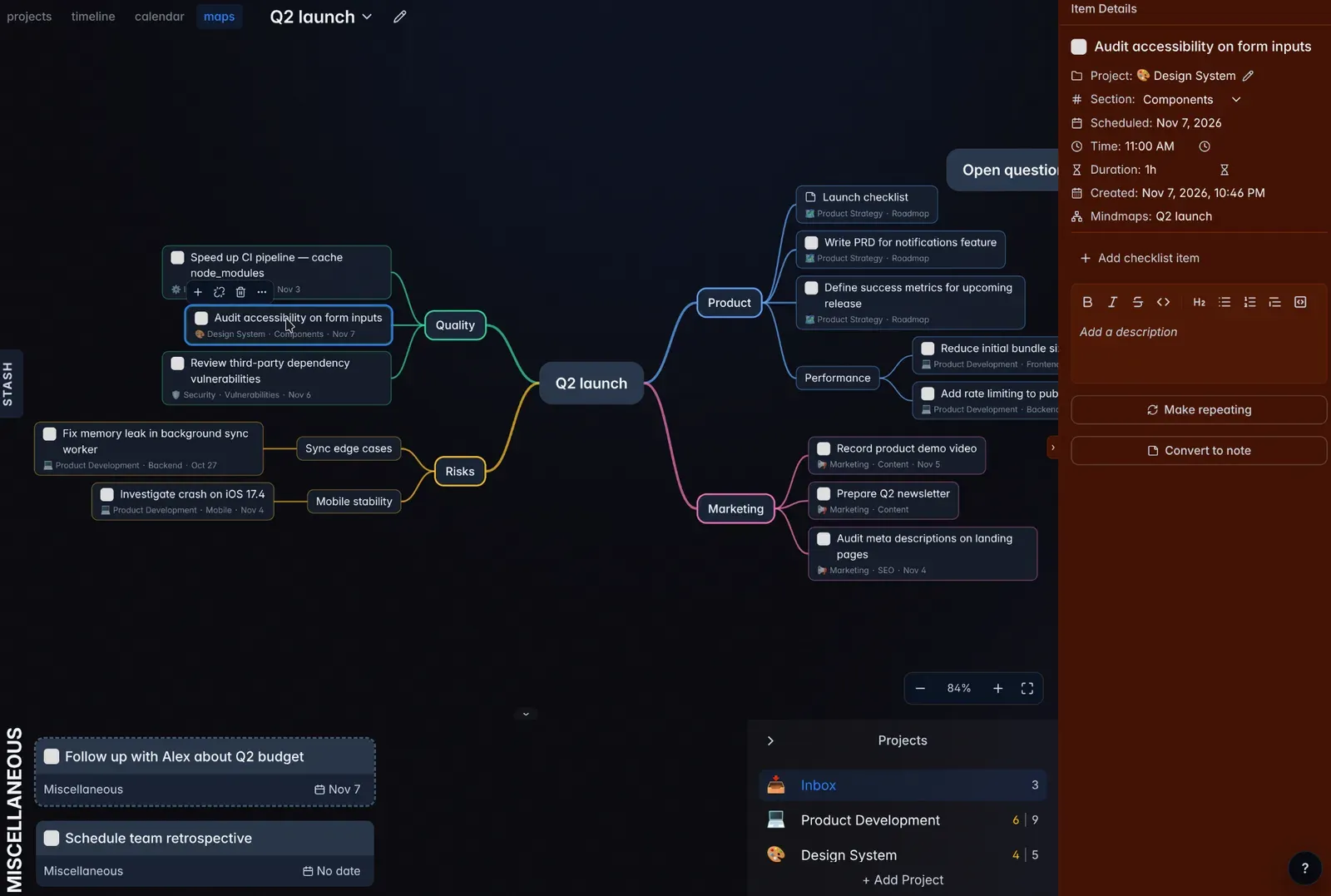
Open maps in the view switcher to lay out ideas around a central topic. Branches can hold plain topics, tasks, and notes from any project.
- Press
Tabto add a subtopic andEnterto add a topic below. Turn a topic into a task or a note with the buttons above it. - Drag tasks and notes from the project panel below the map onto a topic, or onto empty space to start a new branch. The same task can sit on several topics and several maps.
- Task and note topics stay linked to their item. Completing or renaming one on the map changes it everywhere, and the details panel lists every mindmap it appears on.
- Double-click empty space to start a floating topic with its own branches.
- Select several topics by dragging across empty space,
Shift-click, orCtrl/Cmd-click, then move, copy, cut, or remove them together. Task actions such as scheduling, moving, and stashing apply to every selected task. - Paste an outline from MindNode or another outliner, a Markdown list, bulleted lists from Google Docs or Notion, or OPML, and each line becomes a topic with its nesting kept.
- Navigate with
h/j/k/l, reorder withCtrland those keys, and collapse a branch with.. On touch screens, pan with one finger, pinch to zoom, and use the bottom bar for topic actions.
Removing a topic or deleting a whole mindmap keeps its tasks and notes in their projects.
Notes
A note is a project section item with a title and a description but no done state. Use it for meeting notes, a project brief, or any reference text that belongs between tasks.
Select Convert to note in a task’s menu or details to turn it into a note in the same place, and Convert to task to turn it back. With a note focused, press o or Shift+O to add another note below or above it. Deleted notes go to Trash like tasks.
Undo and redo
Press u, Cmd+Z, or Ctrl+Z outside a text field to undo your last change, and Cmd+Shift+Z, Ctrl+Shift+Z, or Ctrl+R to redo it. Undo covers tasks, notes, templates, projects, sections, schedules, Stash, checklists, mindmaps, and Trash.
Deleting an item or converting between a task and a note also shows a popup with an Undo button for a few seconds.
Each tab keeps its own history until you reload it. Changes synced from other devices are never undone, and a step that was edited elsewhere in the meantime is skipped with a message.
Select several items
Shift-click to select a range,Ctrl/Cmd-click to add or remove one item, or extend the selection withShift+J/Shift+KorShiftand the arrow keys.- Drag any selected item to move them all in order. Complete, schedule, stash, move, and delete shortcuts, and the action menu, apply to the whole selection.
- Copy, cut, and paste with
Cmd/Ctrl+C,X, andV. Tasks paste across projects, days, and Stash; notes paste into project sections. Copies keep their description and checklist.
Calendar keyboard shortcuts
The calendar now works from the keyboard too:
- Move between tasks with
h/j/k/lor the arrow keys. - Move a task to another day with
Ctrl+h/Ctrl+l.Ctrl+k/Ctrl+jmove a timed task 15 minutes earlier or later in Day and Week views, and a week earlier or later in Month and Plan views. - Press
oto add a task that starts when the focused one ends, orShift+Ofor the half hour before it. Space,1–3,t,Shift+S,Enter, and the delete keys work as they do in lists.
Fixes
- Changes are written to local storage before other tabs see them and before downloaded sync data is acknowledged, so closing a tab mid-sync no longer risks losing changes.
- A new space whose first sync fails retries as soon as your account syncs.
- Mobile timeline controls no longer cover board content and are easier to tap, and project panels start folded on small screens.
API changes
- New mindmap endpoints list, create, read, rename, and delete mindmaps, and add, update, move, and remove their nodes.
- New note endpoints read, update, move, and delete notes, and convert tasks to notes and back.
Upgrade notes
- Self-hosted installations: pull
ghcr.io/will-be-done/will-be-done:0.14.0(orlatest) and recreate the container. The sync protocol is unchanged, and existing data needs no manual migration. - Update the desktop app so
Cmd+ZandCtrl+Zfrom its Edit menu undo app changes. Older desktop builds still undo only text edits with those keys;uworks in any build.