v0.13.0
Calendar planning, rich text, and task recovery
Plan tasks on a calendar with times and durations, format text with Markdown, merge edits across devices, and recover deleted tasks for 30 days.
At a glance
- Day, Week, Month, and two-week calendar views
- Task start times, durations, and recurring task previews
- Markdown formatting and text edits that merge across devices
- Quick add from any view with Ctrl+A
- Trash with 30-day task recovery
- Consistent project icons and simpler desktop Google sign-in
Plan tasks on a calendar, format task text with Markdown, and recover deleted tasks for 30 days.
What’s new
Calendar and task times
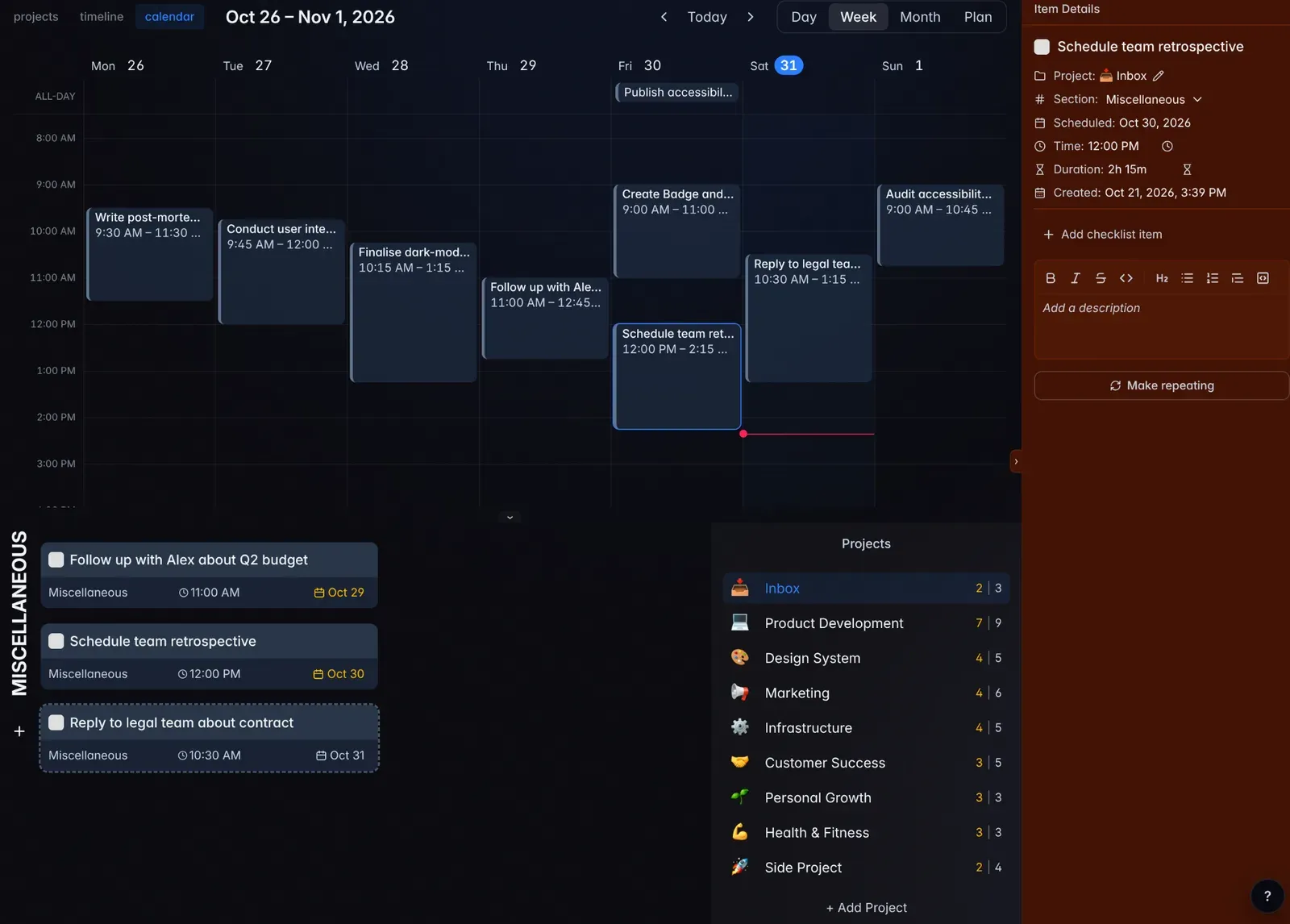
- Plan in Day, Week, Month, or Plan view. Plan shows two weeks at a time.
- Set optional start times and durations for tasks and recurring templates. In Day and Week views, tasks without a time stay in the all-day row.
- Drag tasks to change their day or time, and resize timed blocks to change their duration.
- Drag tasks from project sections onto the calendar to schedule them.
- See upcoming recurring tasks as gray previews in the calendar, timeline, and daily views. Open a preview to edit its template.
Text formatting and shared editing
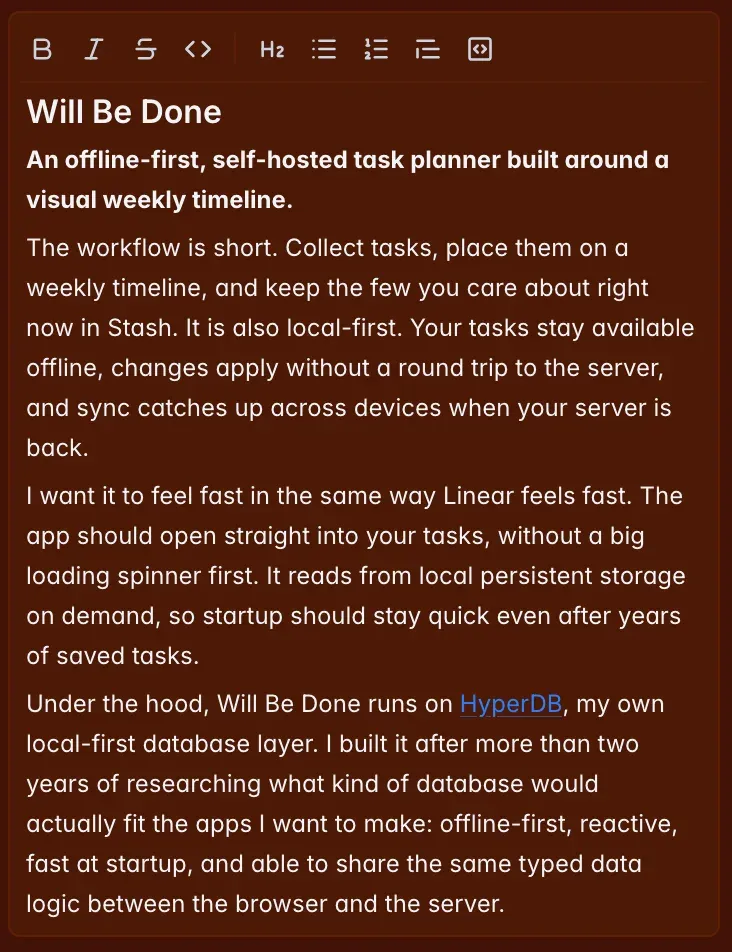
Task and recurring template titles, descriptions, and checklist items now support Markdown formatting as you type. Use bold, italic, strikethrough, inline code, and links. Descriptions also support headings, lists, quotes, code blocks, and dividers, with a formatting toolbar.
Pasted Markdown keeps its formatting. Paste a URL over selected text to turn it into a link.
Edits to the same text on different devices now merge character by character, including edits made offline. Changes to the same words can interleave, so check the result after a conflict.
Quick add across views
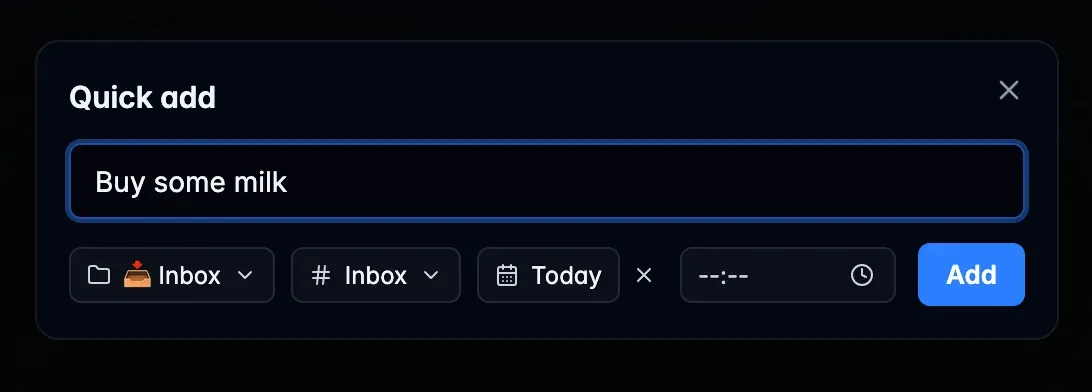
Press Ctrl+A outside a text field to create a task from anywhere in a space. Pick a project, section, and date, then press Enter. The dialog starts with the project and date from your current page.
Recover deleted tasks
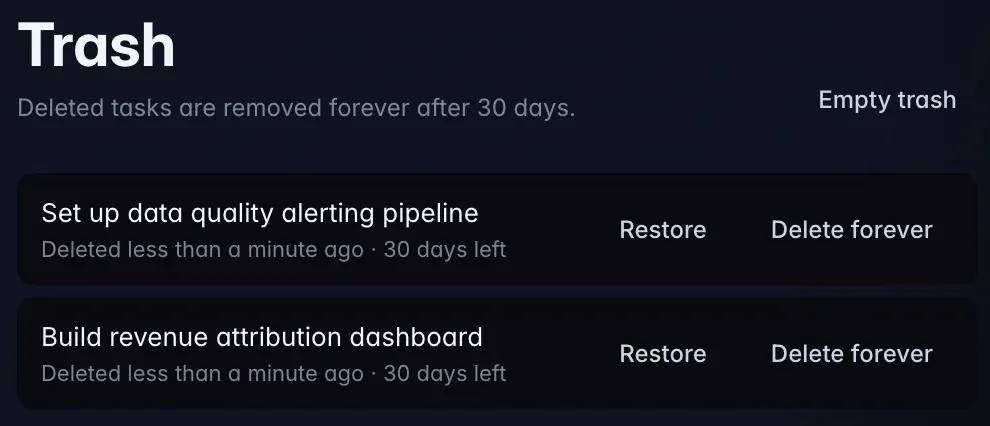
Deleted tasks now stay in Trash for 30 days. Open Trash at the bottom of the sidebar to restore a task or delete it forever.
Restoring brings back its checklist, schedule, and Stash appearance. If its original section is gone, the task returns to Inbox. Space backups preserve tasks in Trash too.
Deleting a project still deletes its tasks permanently, without moving them to Trash.
Everyday improvements
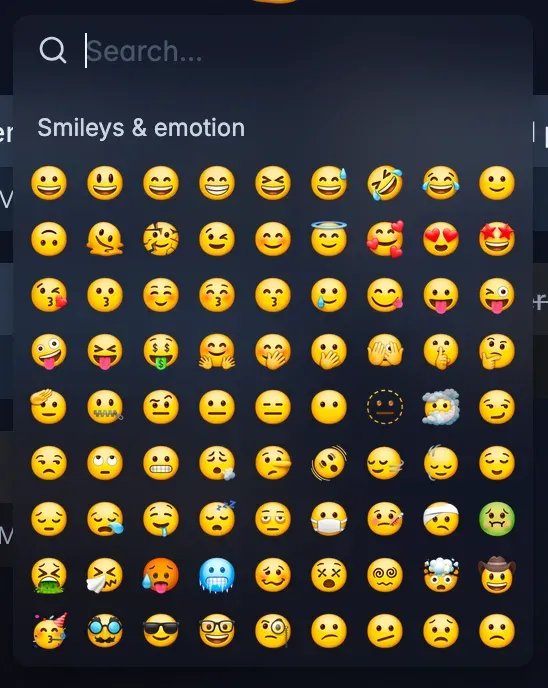
- Project emoji icons have a consistent appearance across platforms, with locally served images and picker data for offline use.
- Project column actions share one menu for renaming, moving, adding, and deleting columns.
- Desktop Google sign-in opens Google directly in your browser, without the extra confirmation code step.
- The download page suggests a desktop installer for your operating system and keeps other platforms available.
Fixes
- Calendar drag previews stay with the current drag when an earlier drop is still saving.
- Calendar cards support keyboard activation, and short timed blocks show the time first.
- Dragging project columns is restricted to their own project.
API changes
- The v1 API supports task start times and durations, including defaults on recurring templates.
- Task and template text fields accept Markdown, and API edits merge with edits made in the app.
- Deleting a task through the API moves it to Trash. Restore it from the app within 30 days.
Upgrade notes
- Self-hosted installations must deploy the v0.13.0 web client and API together. This release requires sync protocol v5, so older clients must update to keep syncing.
- Update desktop clients too. The new sync protocol allows restored tasks to reappear correctly across devices.